
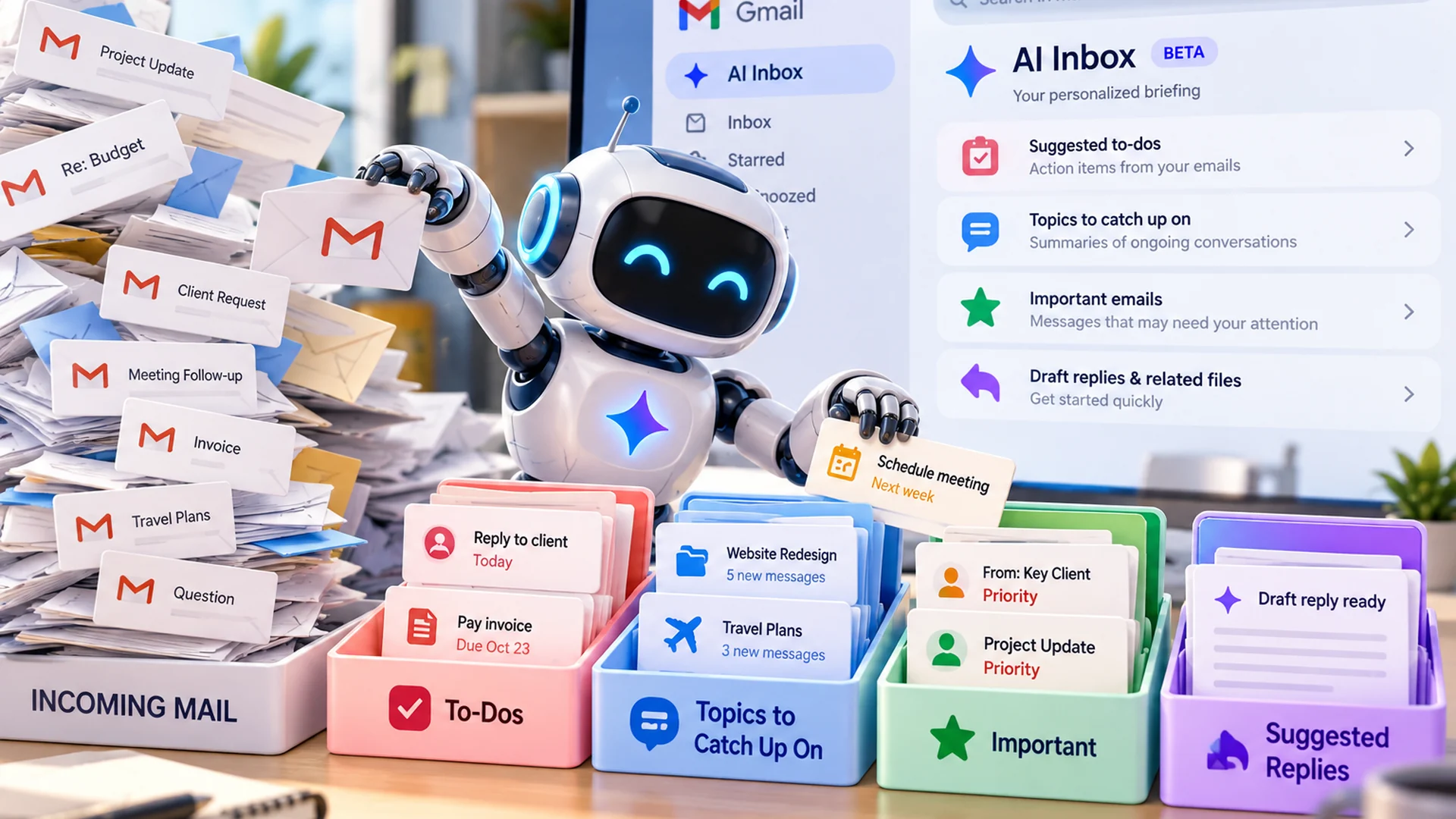

Gmail AI Inbox: My First Five Days With Google’s New Email Assistant
I've been using Google's new Gmail AI Inbox for five days, and I'm already seeing improvements in how I manage email. What impresses me most isn't artificial intelligence by itself. It's that Google is starting to organize information around what needs attention, not just what arrived most recently.
When you are juggling clients, projects and long conversations, an important detail can disappear beneath newer messages. Gmail AI Inbox is trying to solve that problem. Here is what I like, what it actually does, and why I still verify important details.
What Is Gmail AI Inbox?
Gmail AI Inbox is a Gemini-powered view that turns selected messages into a personalized briefing. It does not replace your chronological inbox. Instead, it introduces Suggested to-dos and Topics to catch up on, which highlight potential actions and summarize important conversations. Google explains the feature in its official AI Inbox Help Center.
What I Noticed in My First Five Days
Follow-Ups Are Easier to Recognize
The first thing I like is how Gmail surfaces unfinished business. An email may ask for a reply, document, confirmation or decision. That is more useful to me than seeing another unread count. The value is recognizing that something still needs to happen.
Topic Grouping Makes Catching Up Easier
The second thing I like is Topics to catch up on. A business discussion might span several messages or threads. Instead of rebuilding the whole conversation in my head, I can start with a compact overview and then open the important messages.
Can Gmail AI Inbox Summarize Long Email Conversations?
Yes. Google describes Topics to catch up on as summaries of important ongoing discussions. Imagine a hypothetical website project with 25 emails over three days. A request changes, someone supplies details, and another person confirms the next step. A summary may help establish the current status without reading every message first.
Use Summaries to Catch Up, Not as a Complete Record
A summary is not an agreement or an authoritative project history. If a decision involves price, client approval, a deadline, or sensitive information, I open the original messages and verify the exact wording. This is why I recommend businesses trust but verify AI-generated work.
What Features Does Gmail AI Inbox Include?
| Feature | What it does | Practical benefit |
|---|---|---|
| Suggested to-dos | Surfaces likely actions and deadlines | Highlights unfinished work |
| Topics to catch up on | Summarizes important conversations | Makes long threads easier to follow |
| Priority surfacing | Selects potentially significant mail | Helps focus attention |
| Personalized briefing | Organizes selected updates | Changes the daily starting point |
Other Gemini features in Gmail can help with writing and replies, but these should not be mistaken for a guarantee that every AI Inbox item automatically provides a draft reply or related file.
Can You Tell Gmail AI Inbox to Prioritize a Specific Sender?
Partly. AI Inbox may prioritize messages from frequent contacts based on communication and context, but Google does not document a rule to always extract and highlight every action item from a particular sender.
Combine Gmail Filters With AI Inbox
For a key client or employee, create a traditional Gmail filter that applies a label or star to their messages. Check the label regularly, and use AI Inbox as an additional briefing layer. Avoid automatically archiving conversations that you expect AI Inbox to consider. Gmail filters give you predictable rules; AI Inbox gives you intelligent suggestions.
How Accurately Does Gmail AI Inbox Identify Deadlines?
Google has not published a measured accuracy rate for AI Inbox deadline detection. Treat deadlines it surfaces as useful reminders, not guarantees. Explicit dates should be easier to interpret than ambiguous wording, but that expectation is not an accuracy claim.
| Hypothetical email wording | What to verify |
|---|---|
| Send it by Friday, October 23. | Specific date and year |
| I need this ASAP. | No precise deadline |
| By the end of the day. | Sender time zone and intended day |
| Move it to next week. | Which day and whether the change was approved |
| Approval by 3 PM Pacific. | Time zone and date |
If a thread changes a deadline, I want the latest confirmed commitment in my calendar or task system. Let AI Inbox remind you what might be due. Let your calendar or task manager hold what you agreed to deliver.
How Is AI Inbox Different From Regular Gmail?
Traditional Gmail answers a simple question: what messages arrived? AI Inbox attempts to answer another: what might need my attention? Both views matter. The regular inbox remains essential for searching, reading attachments and checking original messages.
What Emails Does Gmail AI Inbox Leave Out?
Google documents important scope limits. AI Inbox focuses on the Primary tab rather than Social and Promotions. It also excludes spam, deleted, archived, snoozed, muted, encrypted and delegated-mailbox messages, and it does not use attachments as sources. An empty AI briefing does not guarantee that no important work remains.
Who Can Use Gmail AI Inbox in October 2026?
As of October 19, 2026, AI Inbox remains a US, English (US), paid-plan beta with Smart Features enabled. Personal Gmail requires eligible Google AI Plus, Pro or Ultra access. Paid Workspace editions have phased rollout schedules.
| Account category | Status as of October 19, 2026 |
|---|---|
| Free personal Gmail | Not eligible on its own |
| Google AI Plus, Pro, Ultra | Eligible personal subscriptions |
| Workspace Business Standard and Plus | Rolling out |
| Enterprise Standard and Plus, Frontline Plus | Rolling out |
| Business Starter, Enterprise Starter, AI Pro for Education | Later rollout planned |
Google said Rapid Release domains started October 12, while Scheduled Release domains begin October 26. Rollout may take up to 15 days. Read Google Workspace’s announcement for current eligibility and timing.
How Do You Enable Gmail AI Inbox?
✓ Open Gmail settings and choose See all settings.
✓ Open the Inbox tab and look for Show AI Inbox.
✓ Enable the option and use AI Inbox in the left navigation.
✓ Check Smart Features, account eligibility and rollout status if it does not appear.
Google notes that initial topics and to-dos may take time to appear. Interface labels and availability can change during beta.
What About Privacy and Confidential Business Emails?
Email can contain client details, financial discussions, personal data and sensitive agreements. Before enabling AI features, review your Google account settings and your organization’s policies. The AI privacy checklist for small businesses explains useful safeguards for working with AI systems.
Will Gmail AI Inbox Replace Task Management Software?
I do not think so. Finding a task is different from assigning it, tracking its owner or confirming it was completed. A client request still needs an accountable business process. Our article on scheduled automation and business workflows explores how technology can help without replacing oversight.
The same is true for sales. Recognizing a missed reply can help, but you still need a consistent system for lead generation readiness and unfinished follow-ups.
My Recommended Approach to Using Gmail AI Inbox
Start your day with the AI briefing before sorting newer messages.
Review suggested follow-ups and decide which require action.
Use topics to catch up, then inspect original messages for critical details.
Verify dates, amounts, approvals and promises.
Keep a separate calendar, CRM or task system for confirmed commitments.
The Caveman Marketing Quiz
How much of your marketing is still hunting by hand?
Rate 15 statements and see which of five stages your marketing is in, from The Hunter to The AI-Augmented Entrepreneur.
Frequently Asked Questions About Gmail AI Inbox
Is Gmail AI Inbox free?
No. Personal access currently requires a qualifying paid Google AI plan. Some separate Gmail AI features have other eligibility rules.
Does AI Inbox replace my regular inbox?
No. It is an additional view.
Can it summarize long threads?
Yes, for important ongoing topics, but verify significant details against the source messages.
Can it always highlight a specific sender?
Google does not document a guaranteed sender-specific AI Inbox rule. Use a traditional Gmail filter or label.
How accurate is deadline detection?
Google has not published a measured accuracy rate. Check changing, ambiguous and time-zone-sensitive dates.
Can it read attachments?
Google currently lists attachments among excluded information.
Why can’t I see AI Inbox?
Check the paid plan, US English setting, Smart Features and rollout timing.
My Verdict After Five Days
The most promising change is that Gmail is starting to organize messages around decisions, responsibilities and next actions. After five days, I like the follow-up capabilities and topic grouping. I am enthusiastic about where this could go, but I would not confuse a beta summary with a complete business record. Let AI help organize the work, and keep people responsible for the decisions.
Ready to Make AI More Useful in Your Business?
AI tools become valuable when they solve real problems in your everyday workflow. Released Solutions helps business owners explore practical AI applications and improve their processes without losing control of their operations. If you want to learn practical AI skills for your business, explore our coaching.
Last fact-checked: October 19, 2026.